Customize Claude Code themes with Wardrobe
Open /wear, choose a readable look, then decide whether to match the terminal theme or pin it to a project. Keep /wear default as your way back. Wardrobe restyles Claude Code's working rows, not the whole Desktop app.
Open the gallery
Use Claude Code 2.1.287 or later in a terminal, or a local Code session in Claude Desktop. Desktop includes its own Claude Code; the official minimum there is 2.1.286, while this collection conservatively requires 2.1.287.
The current official mods documentation also allows mod UI in the VS Code chat panel with extension 2.1.299 or later, in a session that fetches feature flags. That platform capability is not a compatibility test of every mod. Desktop WSL sessions have no plugins. Remote Control shows mod UI in the terminal on the host machine.
Wardrobe v0.1.1 styles the terminal and local Desktop Code. Its source explicitly leaves VS Code and mobile drawing alone, even though newer VS Code extensions can render other mod UI.
Run these inside Claude Code. Skip the marketplace command if you already added it.
/plugin marketplace add modmyclaude/claude-code-mods/plugin install wardrobe@modmyclaudeCheck claude --version in your shell, or /status in Desktop. If you install externally while a session is open, use /reload-plugins in that session. See the install guide for setup and troubleshooting.
/wearEach gallery entry previews a tool row, diff cues and the theme's costume for Bolt. The worn look is marked. Choose a wear button or enter a theme command in the session.
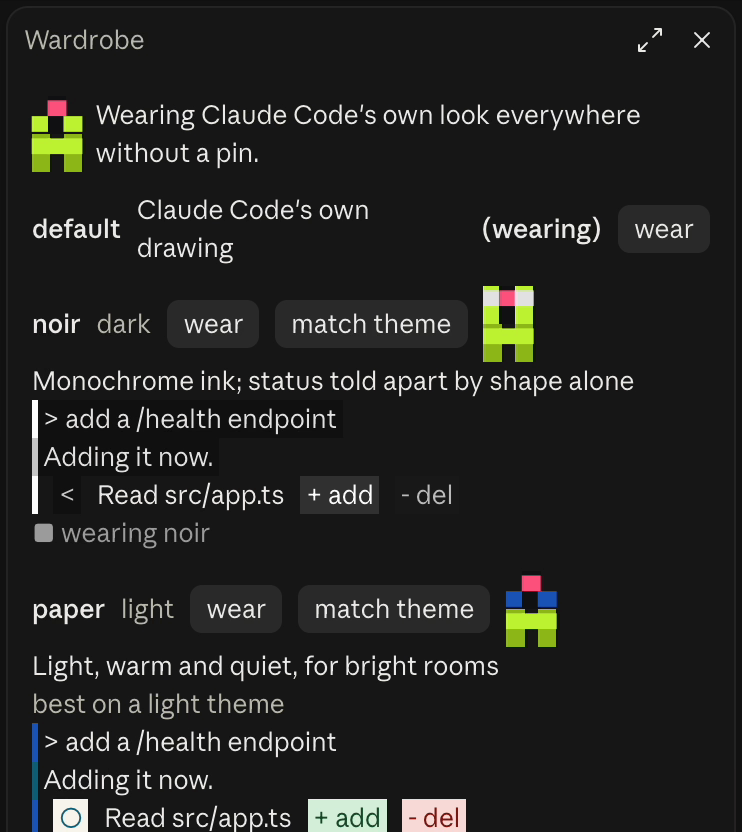
Choose readability before decoration
Match a light terminal look
/wear paper --matchThis wears Paper and asks Claude Code to match its own theme setting. Wardrobe prefers its bundled theme file when that option is available, otherwise the nearest built-in tone, preserving an ANSI or daltonized variant where possible. In a terminal, that lets input borders, message backgrounds, text and diff colors follow the look.
From Desktop, --match changes Claude Code's terminal theme setting, not the Desktop window or sidebar. Light panels may stay stripe-only where Wardrobe cannot safely paint their background. It does not change the terminal emulator's font or background either.
Use cues beyond red and green
/wear colorblindColorblind uses blue for additions and orange for removals, with distinct tool and status shapes. Read the symbols as well as the color. If you want a stronger contrast option, try /wear high-contrast.
The repository's theme tests claim at least 4.5:1 for the color pairs Wardrobe paints, and at least 7:1 for High Contrast. Those are palette-test results reported by the repository, not fresh pixel measurements of your screen or an accessibility certification. Claude Code's own unmodified drawing, your display and the attached surface still matter.
Restore the original drawing
/wear defaultWardrobe stops applying its look. After a match it restores the Claude Code theme you had before, unless you changed that setting yourself afterward; then your newer choice stands. A locked or refused setting change is reported instead of silently forced.
Keep a project look without changing every project
/wear pinPin after choosing the look you want. The pin belongs to the folder where the session started, not a repository-wide identity. A session started in a subfolder or another worktree gets a separate pin. While pinned, later /wear theme choices change this folder's pin rather than the global choice.
/wear unpinUnpin to follow the global choice again. The global look and per-folder pins live in the plugin's own store. Changes from another session can take up to a minute to reach this one.
Know which parts can change
- Terminal working view
- Tool rows, folded groups, small diff and shell cards, spinner suffixes, turn lines, prompt and reply row decoration, gallery and switch band can use the look. Existing rows already printed on the terminal's main screen keep their old appearance; new rows and the fullscreen view follow the choice.
- Local Desktop Code
- Wardrobe can decorate the mod drawing sites in the working conversation. The app's window frame, sidebar, input box, page background and fonts are unaffected. Desktop keeps its own footer and chrome.
- Claude Code's own safety and large output
- Permission dialogs, errors, large or binary diffs, edits held for review and long shell output stay with Claude Code. Wardrobe wraps tool rows rather than taking over tool behavior, and steps aside when another mod owns a result drawing.
- VS Code and mobile
- This Wardrobe snapshot does not restyle them. General mod UI capability on a platform does not make every theme mod compatible.
/wear answers with display-only messages, not model instructions. Wardrobe makes no model calls, file accesses, processes or network requests. It reads session and theme information, stores choices, and changes Claude Code's theme setting only when you request matching or restoration. It does not refuse or modify a tool call.
Troubleshoot a look that seems unchanged
- The gallery does not open
- Check installation and enablement in
/plugin, reload after an external install and use a terminal or local Desktop Code session. A non-drawing run can list themes in its log instead of a pane. - Paper changes stripes but not every background
- Try the match command in a terminal. Desktop's own background is outside Wardrobe's control, and light fills can be withheld for readability.
- Old rows or large output keep the original look
- That is expected. New main-screen rows change; already printed rows do not. Large output and safety UI remain Claude Code's drawing.
- Another worktree forgot my pin
- Open the gallery in that startup folder and pin it separately. Unpinning returns to the global look; it does not copy a sibling folder's pin.
Source and next steps
Reviewed against Wardrobe v0.1.1, commit d314914, and current official documentation on 15 Oct 2026. The screenshot is existing project media. No new live Claude Code test was run.